Ajitabh Pandey's Soul & Syntax

Exploring systems, souls, and stories – one post at a time

Category: Security

  • Why Is My Computer Asking to “Find Devices” on My Network? (Should I Say Yes?)

    If you’ve opened Chrome, a coding app, or even some basic software lately, you might have seen a message like:

    “Allow this app to find and connect to devices on your local network?”

    That can sound a bit unsettling. It almost feels like your computer wants to look around your house. So what’s really going on?

    Think of It Like Your Home

    Imagine your Wi-Fi as a hallway inside your house.

    • Your laptop is in one room
    • Your TV is in another
    • Your printer is somewhere else

    Normally, these devices stay in their own spaces. When an app asks for “local network access,” it’s basically asking:

    “Can I walk into the hallway and see what other devices are nearby?”

    It’s not breaking in – it’s just asking permission to look around.

    Why Apps Ask for This

    Most of the time, apps aren’t trying to spy on you. They’re just trying to do useful things.

    Here are a few common situations:

    • Watching something and casting it to your TV
      Your browser needs to find your TV on the same Wi-Fi. Without permission, it simply can’t see it.
    • Printing a document
      Your laptop needs to locate your printer and send the file to it.
    • Setting up smart devices
      If you buy a smart bulb or camera, the setup app needs to find that device to connect it to your Wi-Fi.

    What About AI or Coding Apps?

    You might also see this with tools like Codex or Cursor or other AI apps.

    Even if you’re not a programmer, here’s why:

    • Some apps sync files between your devices over your home Wi-Fi
    • Some AI tools connect to local services or devices instead of using the internet

    So the request is still about devices talking to each other inside your home network.

    So… Should You Allow It?

    Here’s a simple way to decide:

    • Browsers (Chrome, Safari):
      Start with “No.” You don’t need it for normal browsing. If you try to cast something later, it’ll ask again.
    • Setting up a new device:
      Say “Yes.” It won’t work otherwise.
    • Coding or AI tools:
      Usually “No,” unless you know you need it.
    • Music or smart speaker apps (Spotify):
      Say “Yes” if you want to control devices around your house.

    Is There Any Privacy Risk?

    A little, yes.

    When you allow access, the app can see what devices are connected to your Wi-Fi. That might include things like your TV, speakers, or other gadgets.

    It’s not stealing anything, but it can build a picture of your setup. Companies might use that kind of information to better target ads or understand your habits.

    The Simple Rule

    If you’re unsure, just tap “Don’t Allow.”

    Nothing breaks permanently. If something stops working (like casting or printing), you can always go into your settings later and turn it on.

    Think of it this way: keep the doors closed until you actually need to open them.

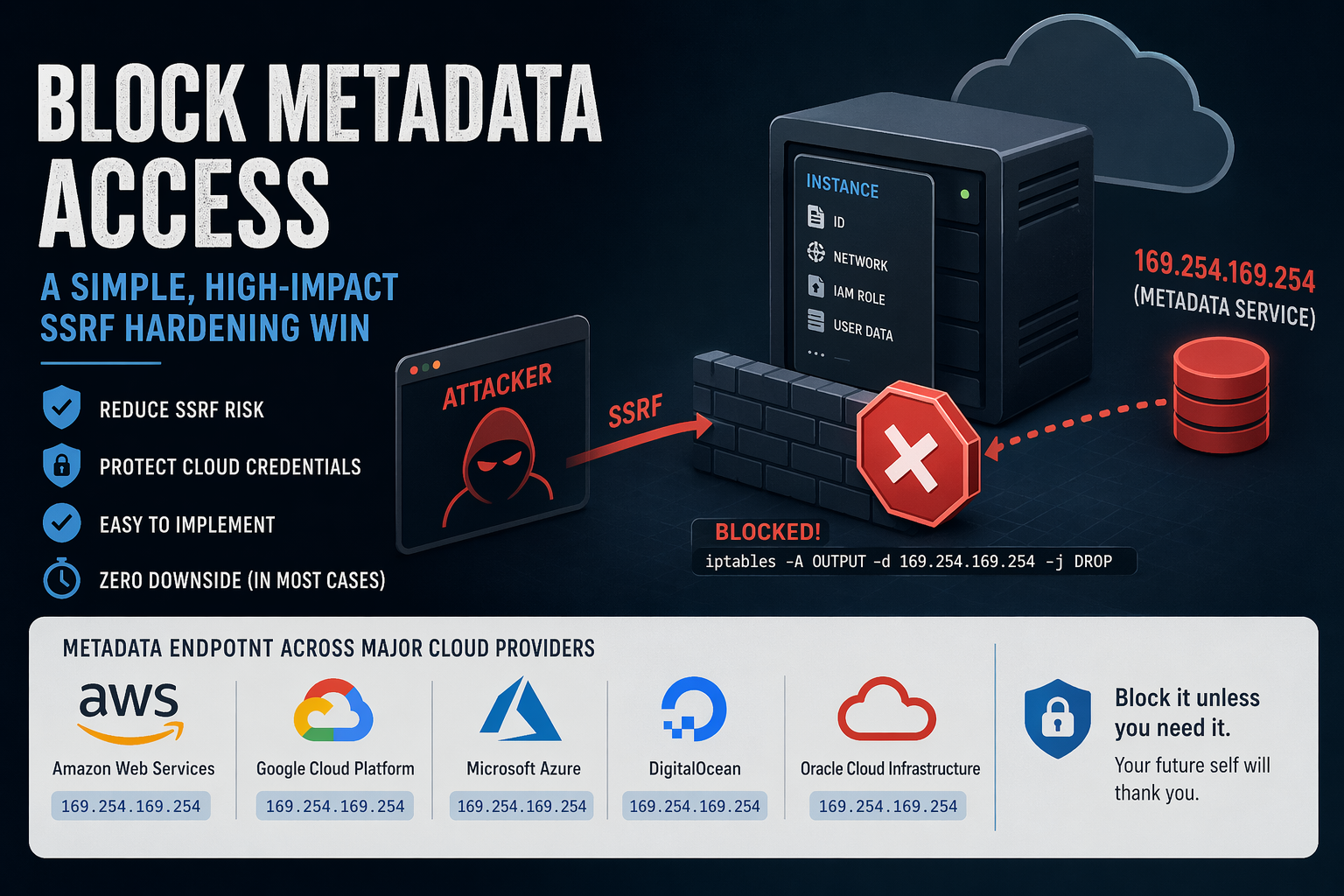
  • Blocking Metadata Access: A Simple SSRF Hardening Win

    Blocking Metadata Access: A Simple SSRF Hardening Win

    If you’re running infrastructure on cloud platforms, there’s a quiet but powerful security control you can apply with almost no downside: block access to the instance metadata service (IMDS) from your workloads.

    I recently applied this on a couple of authoritative DNS nodes running on DigitalOcean, and it’s one of those rare changes that’s both low-risk and high-value.

    This blog post explains what is it and how to go about it.

    What is Instance Metadata?

    Most cloud providers expose a metadata service to instances (VMs). This is a local HTTP endpoint that lets the VM retrieve information about itself, such as:

    • Instance ID, hostname
    • Network configuration
    • SSH keys (sometimes)
    • IAM credentials (on some platforms)

    This service is not on the public internet. Instead, it’s exposed via a link-local IP address, meaning it’s only reachable from within the instance.

    The most commonly used metadata IP:

    169.254.169.254

    This address is part of the link-local range (169.254.0.0/16) and is widely adopted across cloud providers.

    Why is Metadata Access Dangerous?

    By itself, metadata access is not inherently bad, it’s useful for bootstrapping.

    The problem arises when you combine it with SSRF (Server-Side Request Forgery) vulnerabilities.

    The Risk Scenario

    If an attacker can trick your application into making HTTP requests (e.g., via SSRF), they may be able to:

    1. Access http://169.254.169.254
    2. Query metadata endpoints
    3. Extract sensitive data like:
      • Temporary credentials (e.g., IAM roles on Amazon Web Services)
      • Internal configuration

    This has been the root cause of several real-world breaches.

    • The Capital One data breach is the canonical example: an SSRF vulnerability was used to access the AWS Instance Metadata Service and extract credentials, ultimately exposing data of over 100 million customers
    • Security research consistently shows that IMDS (especially IMDSv1) can act as a “skeleton key,” allowing attackers to pivot from a simple SSRF bug to full cloud account compromise
    • A 2025 large-scale campaign specifically targeted EC2 instances by abusing metadata endpoints to steal credentials via SSRF
    • More recent vulnerabilities (e.g., CVE-2026-39361) explicitly note that attackers can retrieve IAM credentials from AWS, GCP, or Azure metadata services once SSRF is achieved
    • Industry threat reports confirm this is ongoing: attackers have been observed systematically exploiting metadata services at scale to steal credentials

    So, the metadata endpoints turn a “minor” SSRF bug into credential theft, privilege escalation, and full infrastructure compromise.

    Why Blocking It Makes Sense

    For many workloads, especially dedicated infrastructure nodes like:

    • Authoritative DNS servers
    • Reverse proxies
    • Stateless services

    there is no legitimate need to access metadata after provisioning.

    So blocking it gives you:

    • SSRF blast-radius reduction
    • Defense-in-depth
    • Zero operational impact (in most cases)

    How to Block Metadata Access (iptables)

    The simplest approach: deny outbound traffic to 169.254.169.254

    Basic Rule

    iptables -A OUTPUT -d 169.254.169.254 -j DROP

    With Logging (Optional)

    iptables -A OUTPUT -d 169.254.169.254 -j LOG --log-prefix "IMDS BLOCK: "
    iptables -A OUTPUT -d 169.254.169.254 -j DROP

    If You Use Default-Deny Outbound (Recommended)

    If you already enforce a strict outbound policy:

    # Ensure metadata is explicitly blocked
    iptables -A OUTPUT -d 169.254.169.254 -j REJECT

    nftables Equivalent

    nft add rule inet filter output ip daddr 169.254.169.254 drop

    Common Metadata IPs Across Cloud Providers

    While my own usage is mostly limited to DigitalOcean and Amazon Web Services Lightsail, a quick survey of other major platforms shows a consistent design choice: the same metadata endpoint (169.254.169.254) is used across Amazon Web Services, Google Cloud Platform, Microsoft Azure, DigitalOcean, and Oracle Cloud Infrastructure.

    NOTE – Blocking this single IP covers almost all major platforms.

    When Not to Block It

    There are a few scenarios where you should be careful:

    • Instances relying on dynamic IAM credentials (common in Amazon Web Services)
    • Auto-scaling systems fetching config at runtime
    • Agents that depend on metadata (monitoring, provisioning)

    If unsure, monitor before blocking:

    iptables -A OUTPUT -d 169.254.169.254 -j LOG

    Then review logs for a few days.

    A Practical Rule of Thumb

    • Infra nodes (DNS, proxies, load balancers): Block it
    • App servers with IAM roles: Evaluate carefully
    • Minimal/static workloads: Block it

    Final Thoughts

    Blocking metadata access is one of those rare controls that:

    • Takes minutes to implement
    • Requires no architectural change
    • Meaningfully reduces risk

    If you’re already running a default-deny outbound firewall, this should be part of your baseline.

    If not, this is a great place to start.

  • Creating VPNs with OpenVPN

    Introduction

    A VPN is a set of tools which allow networks at different locations to be securely connected, using a public network as the transport layer. A VPN produces a virtual “dedicated circuit” over the internet and use cryptography to secure it.
    (more…)

  • Tightening up OpenSSH

    Often I am required required to run a public ssh server, so its a good idea to restrict the OpenSSH server as much as possible.
    (more…)

  • Cracking attempts on my PC

    Since the day I switched on ssh server on my home PC I saw a very increased number of people attempting to crack into my PC. For few days I kept quite as I saw clearly that none of the attacks were able to go anywhere near my user-id. But then I realise that the log size of the auth file is increasing and number of desperate attackers is growing day by day. So I installed a software called Denyhosts from http://denyhosts.sourceforge.net.

    Denyhosts is a python script which can be run as a daemon or as a cron job to analyse the auth log file for invalid number of authentication attempts. This blocks the ip-address of the machine from which successive invalid authntication attempts are coming. To block this ip-address it creates and entry in /etc/hosts.deny file. I have so far blocked 23 different hosts. Let’s see what happens next.