Ajitabh Pandey's Soul & Syntax

Exploring systems, souls, and stories – one post at a time

Category: Tips/Code Snippets

  • Why Is My Computer Asking to “Find Devices” on My Network? (Should I Say Yes?)

    If you’ve opened Chrome, a coding app, or even some basic software lately, you might have seen a message like:

    “Allow this app to find and connect to devices on your local network?”

    That can sound a bit unsettling. It almost feels like your computer wants to look around your house. So what’s really going on?

    Think of It Like Your Home

    Imagine your Wi-Fi as a hallway inside your house.

    • Your laptop is in one room
    • Your TV is in another
    • Your printer is somewhere else

    Normally, these devices stay in their own spaces. When an app asks for “local network access,” it’s basically asking:

    “Can I walk into the hallway and see what other devices are nearby?”

    It’s not breaking in – it’s just asking permission to look around.

    Why Apps Ask for This

    Most of the time, apps aren’t trying to spy on you. They’re just trying to do useful things.

    Here are a few common situations:

    • Watching something and casting it to your TV
      Your browser needs to find your TV on the same Wi-Fi. Without permission, it simply can’t see it.
    • Printing a document
      Your laptop needs to locate your printer and send the file to it.
    • Setting up smart devices
      If you buy a smart bulb or camera, the setup app needs to find that device to connect it to your Wi-Fi.

    What About AI or Coding Apps?

    You might also see this with tools like Codex or Cursor or other AI apps.

    Even if you’re not a programmer, here’s why:

    • Some apps sync files between your devices over your home Wi-Fi
    • Some AI tools connect to local services or devices instead of using the internet

    So the request is still about devices talking to each other inside your home network.

    So… Should You Allow It?

    Here’s a simple way to decide:

    • Browsers (Chrome, Safari):
      Start with “No.” You don’t need it for normal browsing. If you try to cast something later, it’ll ask again.
    • Setting up a new device:
      Say “Yes.” It won’t work otherwise.
    • Coding or AI tools:
      Usually “No,” unless you know you need it.
    • Music or smart speaker apps (Spotify):
      Say “Yes” if you want to control devices around your house.

    Is There Any Privacy Risk?

    A little, yes.

    When you allow access, the app can see what devices are connected to your Wi-Fi. That might include things like your TV, speakers, or other gadgets.

    It’s not stealing anything, but it can build a picture of your setup. Companies might use that kind of information to better target ads or understand your habits.

    The Simple Rule

    If you’re unsure, just tap “Don’t Allow.”

    Nothing breaks permanently. If something stops working (like casting or printing), you can always go into your settings later and turn it on.

    Think of it this way: keep the doors closed until you actually need to open them.

  • Blocking Metadata Access: A Simple SSRF Hardening Win

    Blocking Metadata Access: A Simple SSRF Hardening Win

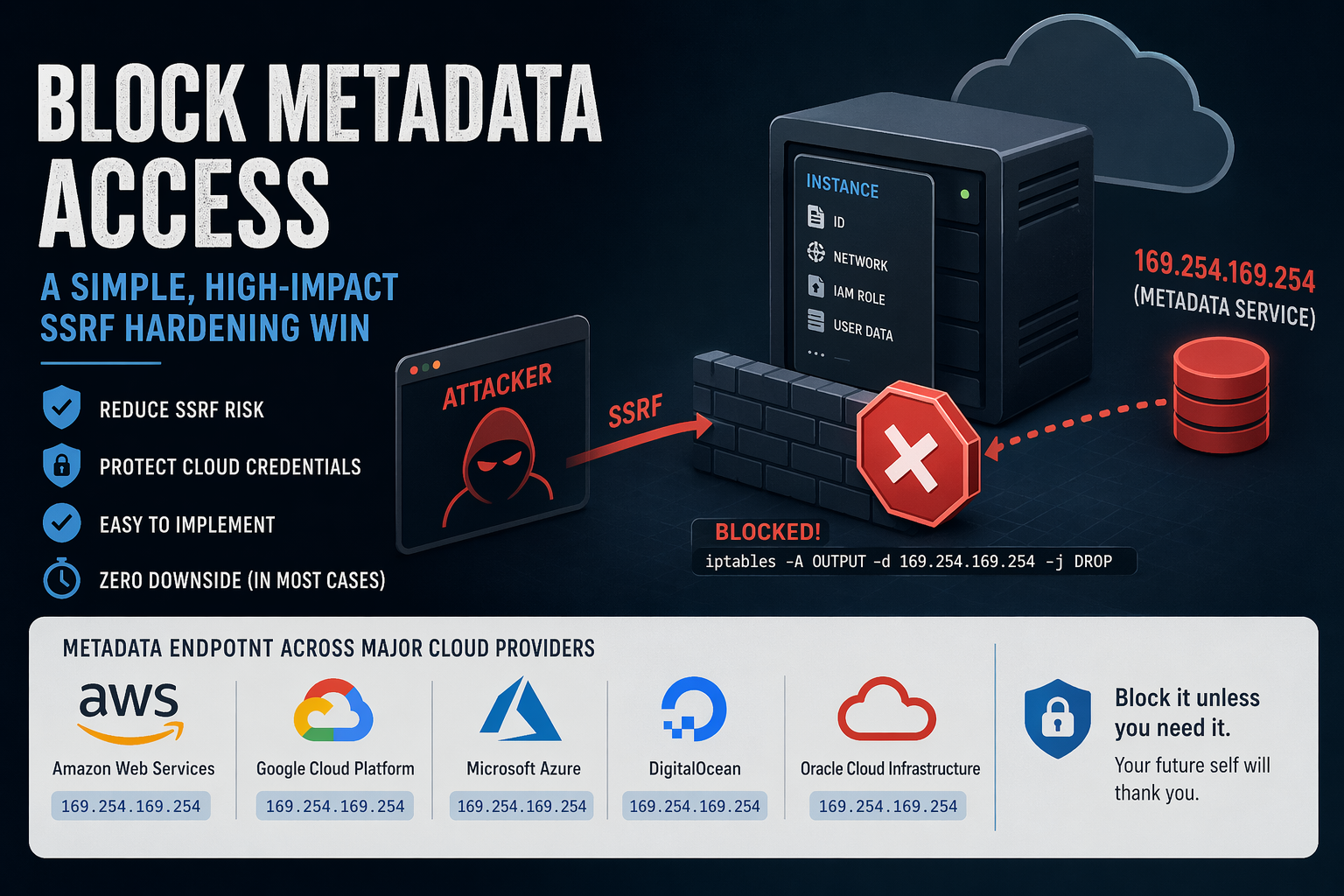
    If you’re running infrastructure on cloud platforms, there’s a quiet but powerful security control you can apply with almost no downside: block access to the instance metadata service (IMDS) from your workloads.

    I recently applied this on a couple of authoritative DNS nodes running on DigitalOcean, and it’s one of those rare changes that’s both low-risk and high-value.

    This blog post explains what is it and how to go about it.

    What is Instance Metadata?

    Most cloud providers expose a metadata service to instances (VMs). This is a local HTTP endpoint that lets the VM retrieve information about itself, such as:

    • Instance ID, hostname
    • Network configuration
    • SSH keys (sometimes)
    • IAM credentials (on some platforms)

    This service is not on the public internet. Instead, it’s exposed via a link-local IP address, meaning it’s only reachable from within the instance.

    The most commonly used metadata IP:

    169.254.169.254

    This address is part of the link-local range (169.254.0.0/16) and is widely adopted across cloud providers.

    Why is Metadata Access Dangerous?

    By itself, metadata access is not inherently bad, it’s useful for bootstrapping.

    The problem arises when you combine it with SSRF (Server-Side Request Forgery) vulnerabilities.

    The Risk Scenario

    If an attacker can trick your application into making HTTP requests (e.g., via SSRF), they may be able to:

    1. Access http://169.254.169.254
    2. Query metadata endpoints
    3. Extract sensitive data like:
      • Temporary credentials (e.g., IAM roles on Amazon Web Services)
      • Internal configuration

    This has been the root cause of several real-world breaches.

    • The Capital One data breach is the canonical example: an SSRF vulnerability was used to access the AWS Instance Metadata Service and extract credentials, ultimately exposing data of over 100 million customers
    • Security research consistently shows that IMDS (especially IMDSv1) can act as a “skeleton key,” allowing attackers to pivot from a simple SSRF bug to full cloud account compromise
    • A 2025 large-scale campaign specifically targeted EC2 instances by abusing metadata endpoints to steal credentials via SSRF
    • More recent vulnerabilities (e.g., CVE-2026-39361) explicitly note that attackers can retrieve IAM credentials from AWS, GCP, or Azure metadata services once SSRF is achieved
    • Industry threat reports confirm this is ongoing: attackers have been observed systematically exploiting metadata services at scale to steal credentials

    So, the metadata endpoints turn a “minor” SSRF bug into credential theft, privilege escalation, and full infrastructure compromise.

    Why Blocking It Makes Sense

    For many workloads, especially dedicated infrastructure nodes like:

    • Authoritative DNS servers
    • Reverse proxies
    • Stateless services

    there is no legitimate need to access metadata after provisioning.

    So blocking it gives you:

    • SSRF blast-radius reduction
    • Defense-in-depth
    • Zero operational impact (in most cases)

    How to Block Metadata Access (iptables)

    The simplest approach: deny outbound traffic to 169.254.169.254

    Basic Rule

    iptables -A OUTPUT -d 169.254.169.254 -j DROP

    With Logging (Optional)

    iptables -A OUTPUT -d 169.254.169.254 -j LOG --log-prefix "IMDS BLOCK: "
    iptables -A OUTPUT -d 169.254.169.254 -j DROP

    If You Use Default-Deny Outbound (Recommended)

    If you already enforce a strict outbound policy:

    # Ensure metadata is explicitly blocked
    iptables -A OUTPUT -d 169.254.169.254 -j REJECT

    nftables Equivalent

    nft add rule inet filter output ip daddr 169.254.169.254 drop

    Common Metadata IPs Across Cloud Providers

    While my own usage is mostly limited to DigitalOcean and Amazon Web Services Lightsail, a quick survey of other major platforms shows a consistent design choice: the same metadata endpoint (169.254.169.254) is used across Amazon Web Services, Google Cloud Platform, Microsoft Azure, DigitalOcean, and Oracle Cloud Infrastructure.

    NOTE – Blocking this single IP covers almost all major platforms.

    When Not to Block It

    There are a few scenarios where you should be careful:

    • Instances relying on dynamic IAM credentials (common in Amazon Web Services)
    • Auto-scaling systems fetching config at runtime
    • Agents that depend on metadata (monitoring, provisioning)

    If unsure, monitor before blocking:

    iptables -A OUTPUT -d 169.254.169.254 -j LOG

    Then review logs for a few days.

    A Practical Rule of Thumb

    • Infra nodes (DNS, proxies, load balancers): Block it
    • App servers with IAM roles: Evaluate carefully
    • Minimal/static workloads: Block it

    Final Thoughts

    Blocking metadata access is one of those rare controls that:

    • Takes minutes to implement
    • Requires no architectural change
    • Meaningfully reduces risk

    If you’re already running a default-deny outbound firewall, this should be part of your baseline.

    If not, this is a great place to start.

  • Lessons from Running a Live Streaming Setup for More than 7 Years

    After seven years of managing high-traffic live streams, you learn that the biggest challenges aren’t usually the video codecs—they are the “invisible” layers: filesystem synchronization, HTTP header inheritance, and metadata consistency.

    When you scale from a single server to a cluster of distribution nodes behind a Load Balancer (LB), the margin for error disappears. Here are the core lessons learned from troubleshooting a production-scale HLS environment.

    1. The “Last-Modified” Lie and LB Skew

    In a multi-server setup (we use 5 distribution nodes), your player is constantly rotating between different IPs. If you use lsyncd or rsync to push files from a source to these nodes, you will encounter Sync Skew.

    Even with a 0-second delay, one server might receive the latest .m3u8 playlist 500ms before another. If a player hits Server A and then Server B, and Server B is slightly behind, the player sees a Last-Modified timestamp that is “older” than the previous one. This triggers Stall Detection in the player (often seen as manifestAgeMs jumping between 20s and 70s), even if the stream is technically healthy.

    The Lesson: Don’t let the player rely on the file’s “birth certificate.” Force the player to judge the stream by its actual content (the Media Sequence) by suppressing metadata headers and using aggressive cache control.

    location /livestream/ {
    alias /var/www/liveout/;

    # HLS Playlists must never be cached by the LB or the Player
    add_header Cache-Control "no-cache, no-store, must-revalidate, max-age=0" always;
    expires -1;

    # Kill the headers that cause false "Stall" detections
    add_header Last-Modified "";
    add_header ETag "";
    if_modified_since off;

    open_file_cache off;
    include cors_support;
    }

    2. The Nginx Inheritance Trap (CORS)

    This is a silent killer. In Nginx, if you define an add_header directive in a parent location and then define any add_header in a nested child location, the child does not inherit the parent’s headers.

    If you optimize your .ts segments for caching but forget to re-include your CORS headers inside that specific block, your player will fetch the playlist successfully but then fail to download the actual media segments due to a CORS error.

    The Lesson: Always re-include your cors_support and use the always flag. The always flag ensures that even if a segment is briefly missing (404), the CORS headers are sent, allowing the player to see the 404 instead of throwing a confusing “CORS blocked” error.

    location ~* \.ts$ {
    # Re-include CORS because we are adding Cache-Control headers here
    include cors_support;

    # Segments are immutable; cache them forever
    add_header Cache-Control "max-age=31536000, public, immutable" always;
    expires 1y;

    # File handle caching is safe for segments
    open_file_cache max=1000 inactive=20s;
    }

    3. The “Two Masters” Conflict in rtmp.conf

    A common mistake is trying to “help” Nginx-RTMP by giving it an application block for every stream type. In our setup, we found that we have an application app_audio block with hls on; while a separate FFmpeg script was writing audio HLS directly to the same disk. This was causing random failures in generating the audio segments.

    Nginx-RTMP has a built-in “Garbage Collector” (hls_cleanup). If it sees files in its hls_path that it didn’t specifically create (because FFmpeg wrote them directly), it will delete them. To the admin, it looks like files are vanishing into thin air.

    The Lesson: If your FFmpeg script is handling the HLS generation (which is often necessary to satisfy strict Apple AVPlayer requirements for audio-only streams), remove the application block from Nginx-RTMP entirely.

    Correct Lean rtmp.conf Logic:

    • Application Ingest: Receives the stream and triggers the script.
    • Application Video: Receives the transcoded RTMP push for video HLS.
    • Audio: No application block. Let FFmpeg own the directory and the filesystem.

    4. The rsync Trap: --size-only

    When syncing HLS manifests to distribution nodes, it is tempting to use --size-only to speed up transfers. Do not do this. An HLS manifest often retains the same file size even when the content changes (e.g., by swapping one 12-second segment URL for another). rsync with --size-only will detect identical byte counts and skip the sync, leaving your distribution nodes with stale playlists.

    The Lesson: Stick to the default mtime (modification time) checks. On a high-performance instance like a DigitalOcean C4 Droplet, the overhead is negligible, but reliability is everything.

    Summary: The Good, the Bad, and the Buffering

    1. Split your caching: Playlists get max-age=0; Segments get immutable.
    2. Explicit CORS: Nginx inheritance is not your friend. Re-include headers in nested blocks.
    3. One Master per Folder: If FFmpeg writes the HLS, Nginx-RTMP should stay out of the way.
    4. Atomic Sync: Use lsyncd with delay = 0 and compress = false for the lowest possible latency across your Load Balancer.

    By following these principles, you ensure that strict players – especially Apple’s AVPlayer – receive a stream that is consistent, fresh, and compliant with the HLS spec.

  • Solving Ansible’s Flat Namespace Problem Efficiently

    In Ansible, the “Flat Namespace” problem is a frequent stumbling block for engineers managing multi-tier environments. It occurs because Ansible merges variables from various sources (global, group, and host) into a single pool for the current execution context.

    If you aren’t careful, trying to use a variable meant for “Group A” while executing tasks on “Group B” will cause the play to crash because that variable simply doesn’t exist in Group B’s scope.

    The Scenario: The “Mixed Fleet” Crash

    Imagine you are managing a fleet of Web Servers (running on port 8080) and Database Servers (running on port 5432). You want a single “Security” play to validate that the application port is open in the firewall.

    The Failing Code:

    - name: Apply Security Rules
    hosts: web:database
    vars:
    # This is the "Flat Namespace" trap!
    # Ansible tries to resolve BOTH variables for every host.
    app_port_map:
    web_servers: "{{ web_custom_port }}"
    db_servers: "{{ db_instance_port }}"

    tasks:
    - name: Validate port is defined
    ansible.builtin.assert:
    that: app_port_map[group_names[0]] is defined

    This code fails when Ansible runs this for a web_server, it looks at app_port_map. To build that dictionary, it must resolve db_instance_port. But since the host is a web server, the database group variables aren’t loaded. Result: fatal: 'db_instance_port' is undefined.

    Solution 1: The “Lazy” Logic

    By using Jinja2 whitespace control and conditional logic, we prevent Ansible from ever looking at the missing variable. It only evaluates the branch that matches the host’s group.

    - name: Apply Security Rules
    hosts: app_servers:storage_servers
    vars:
    # Use whitespace-controlled Jinja to isolate variable calls
    target_port: >-
    {%- if 'app_servers' in group_names -%}
    {{ app_service_port }}
    {%- elif 'storage_servers' in group_names -%}
    {{ storage_backend_port }}
    {%- else -%}
    22
    {%- endif -%}

    tasks:
    - name: Ensure port is allowed in firewall
    community.general.ufw:
    rule: allow
    port: "{{ target_port | int }}"

    The advantage of this approach is that it’s very explicit, prevents “Undefined Variable” errors entirely, and allows for easy defaults. However, it can become verbose/messy if you have a large number of different groups.

    Solution 2: The hostvars Lookup

    If you don’t want a giant if/else block, you can use hostvars to dynamically grab a value, but you must provide a default to keep the namespace “safe.”

    - name: Validate ports
    hosts: all
    tasks:
    - name: Check port connectivity
    ansible.builtin.wait_for:
    port: "{{ vars[group_names[0] + '_port'] | default(22) }}"
    timeout: 5

    This approach is very compact and follows a naming convention (e.g., groupname_port). But its harder to debug and relies on strict variable naming across your entire inventory.

    Solution 3: Group Variable Normalization

    The most “architecturally sound” way to solve the flat namespace problem is to use the same variable name across different group_vars files.

    # inventory/group_vars/web_servers.yml
    service_port: 80
    # inventory/group_vars/db_servers.yml
    service_port: 5432
    # Playbook - main.yml
    ---
    - name: Unified Firewall Play
    hosts: all
    tasks:
    - name: Open service port
    community.general.ufw:
    port: "{{ service_port }}" # No logic needed!
    rule: allow

    This is the cleanest playbook code; truly “Ansible-native” way of handling polymorphism but it requires refactoring your existing variable names and can be confusing if you need to see both ports at once (e.g., in a Load Balancer config).

    The “Flat Namespace” problem is really just a symptom of Ansible’s strength: it’s trying to make sure everything you’ve defined is valid. I recently solved this problem in a multi-play playbook, which I wrote for Digital Ocean infrastructure provisioning and configuration using the Lazy Logic approach, and I found this to be the best way to bridge the gap between “Group A” and “Group B” without forcing a massive inventory refactor. While I have generalized the example code, I actually faced this problem in a play that set up the host-level firewall based on dynamic inventory.

  • Why Systemd Timers Outshine Cron Jobs

    For decades, cron has been the trusty workhorse for scheduling tasks on Linux systems. Need to run a backup script daily? cron was your go-to. But as modern systems evolve and demand more robust, flexible, and integrated solutions, systemd timers have emerged as a superior alternative. Let’s roll up our sleeves and dive into the strategic advantages of systemd timers, then walk through their design and implementation..

    Why Ditch Cron? The Strategic Imperative

    While cron is simple and widely understood, it comes with several inherent limitations that can become problematic in complex or production environments:

    • Limited Visibility and Logging: cron offers basic logging (often just mail notifications) and lacks a centralized way to check job status or output. Debugging failures can be a nightmare.
    • No Dependency Management: cron jobs are isolated. There’s no built-in way to ensure one task runs only after another has successfully completed, leading to potential race conditions or incomplete operations.
    • Missed Executions on Downtime: If a system is off during a scheduled cron run, that execution is simply missed. This is critical for tasks like backups or data synchronization.
    • Environment Inconsistencies: cron jobs run in a minimal environment, often leading to issues with PATH variables or other environmental dependencies that work fine when run manually.
    • No Event-Based Triggering: cron is purely time-based. It cannot react to system events like network availability, disk mounts, or the completion of other services.
    • Concurrency Issues: cron doesn’t inherently prevent multiple instances of the same job from running concurrently, which can lead to resource contention or data corruption.

    systemd timers, on the other hand, address these limitations by leveraging the full power of the systemd init system. (We’ll dive deeper into the intricacies of the systemd init system itself in a future post!)

    • Integrated Logging with Journalctl: All output and status information from systemd timer-triggered services are meticulously logged in the systemd journal, making debugging and monitoring significantly easier (journalctl -u your-service.service).
    • Robust Dependency Management: systemd allows you to define intricate dependencies between services. A timer can trigger a service that requires another service to be active, ensuring proper execution order.
    • Persistent Timers (Missed Job Handling): With the Persistent=true option, systemd timers will execute a missed job immediately upon system boot, ensuring critical tasks are never truly skipped.
    • Consistent Execution Environment: systemd services run in a well-defined environment, reducing surprises due to differing PATH or other variables. You can explicitly set environment variables within the service unit.
    • Flexible Triggering Mechanisms: Beyond simple calendar-based schedules (like cron), systemd timers support monotonic timers (e.g., “5 minutes after boot”) and can be combined with other systemd unit types for event-driven automation.
    • Concurrency Control: systemd inherently manages service states, preventing multiple instances of the same service from running simultaneously unless explicitly configured to do so.
    • Granular Control: Timers offer second-resolution scheduling (with AccuracySec=1us), allowing for much more precise control than cron‘s minute-level resolution.
    • Randomized Delays: RandomizedDelaySec can be used to prevent “thundering herd” issues where many timers configured for the same time might all fire simultaneously, potentially overwhelming the system.

    Designing Your Systemd Timers: A Two-Part Harmony

    systemd timers operate in a symbiotic relationship with systemd service units. You typically create two files for each scheduled task:

    1. A Service Unit (.service file): This defines what you want to run (e.g., a script, a command).
    2. A Timer Unit (.timer file): This defines when you want the service to run.

    Both files are usually placed in /etc/systemd/system/ for system-wide timers or ~/.config/systemd/user/ for user-specific timers.

    The Service Unit (your-task.service)

    This file is a standard systemd service unit. A basic example:

    [Unit]
    Description=My Daily Backup Service
    Wants=network-online.target # Optional: Ensure network is up before running
    
    [Service]
    Type=oneshot # For scripts that run and exit
    ExecStart=/usr/local/bin/backup-script.sh # The script to execute
    User=youruser # Run as a specific user (optional, but good practice)
    Group=yourgroup # Run as a specific group (optional)
    # Environment="PATH=/usr/local/bin:/usr/bin:/bin" # Example: set a custom PATH
    
    [Install]
    WantedBy=multi-user.target # Not strictly necessary for timers, but good for direct invocation
    

    Strategic Design Considerations for Service Units:

    • Type=oneshot: Ideal for scripts that perform a task and then exit.
    • ExecStart: Always use absolute paths for your scripts and commands to avoid environment-related issues.
    • User and Group: Run services with the least necessary privileges. This enhances security.
    • Dependencies (Wants, Requires, After, Before): Leverage systemd‘s powerful dependency management. For example, Wants=network-online.target ensures the network is active before the service starts.
    • Error Handling within Script: While systemd provides good logging, your scripts should still include robust error handling and exit with non-zero status codes on failure.
    • Output: Direct script output to stdout or stderr. journald will capture it automatically. Avoid sending emails directly from the script unless absolutely necessary; systemd‘s logging is usually sufficient.

    The Timer Unit (your-task.timer)

    This file defines the schedule for your service.

    [Unit]
    Description=Timer for My Daily Backup Service
    Requires=your-task.service # Ensure the service unit is loaded
    After=your-task.service # Start the timer after the service is defined
    
    [Timer]
    OnCalendar=daily # Run every day at midnight (default for 'daily')
    # OnCalendar=*-*-* 03:00:00 # Run every day at 3 AM
    # OnCalendar=Mon..Fri 18:00:00 # Run weekdays at 6 PM
    # OnBootSec=5min # Run 5 minutes after boot
    Persistent=true # If the system is off, run immediately on next boot
    RandomizedDelaySec=300 # Add up to 5 minutes of random delay to prevent stampedes
    
    [Install]
    WantedBy=timers.target # Essential for the timer to be enabled at boot
    

    Strategic Design Considerations for Timer Units:

    • OnCalendar: This is your primary scheduling mechanism. systemd offers a highly flexible calendar syntax (refer to man systemd.time for full details). Use systemd-analyze calendar "your-schedule" to test your expressions.
    • OnBootSec: Useful for tasks that need to run a certain duration after the system starts, regardless of the calendar date.
    • Persistent=true: Crucial for reliability! This ensures your task runs even if the system was powered off during its scheduled execution time. The task will execute once systemd comes back online.
    • RandomizedDelaySec: A best practice for production systems, especially if you have many timers. This spreads out the execution of jobs that might otherwise all start at the exact same moment.
    • AccuracySec: Defaults to 1 minute. Set to 1us for second-level precision if needed (though 1s is usually sufficient).
    • Unit: This explicitly links the timer to its corresponding service unit.
    • WantedBy=timers.target: This ensures your timer is enabled and started automatically when the system boots.

    Implementation and Management

    1. Create the files: Place your .service and .timer files in /etc/systemd/system/.
    2. Reload systemd daemon: After creating or modifying unit files: sudo systemctl daemon-reload
    3. Enable the timer: This creates a symlink so the timer starts at boot: sudo systemctl enable your-task.timer
    4. Start the timer: This activates the timer for the current session: sudo systemctl start your-task.timer
    5. Check status: sudo systemctl status your-task.timer; sudo systemctl status your-task.service
    6. View logs: journalctl -u your-task.service
    7. Manually trigger the service (for testing): sudo systemctl start your-task.service

    Conclusion

    While cron served its purpose admirably for many years, systemd timers offer a modern, robust, and integrated solution for scheduling tasks on Linux systems. By embracing systemd timers, you gain superior logging, dependency management, missed-job handling, and greater flexibility, leading to more reliable and maintainable automation. It’s a strategic upgrade that pays dividends in system stability and ease of troubleshooting. Make the switch and experience the power of a truly systemd-native approach to scheduled tasks.