

Ajitabh Pandey's Soul & Syntax

Exploring systems, souls, and stories – one post at a time

Category: FLOSS

About Free/Libre/Open Source Software

  • Upgrading Raspbian 8 (Jessie) to Raspbian 9 (Stretch)

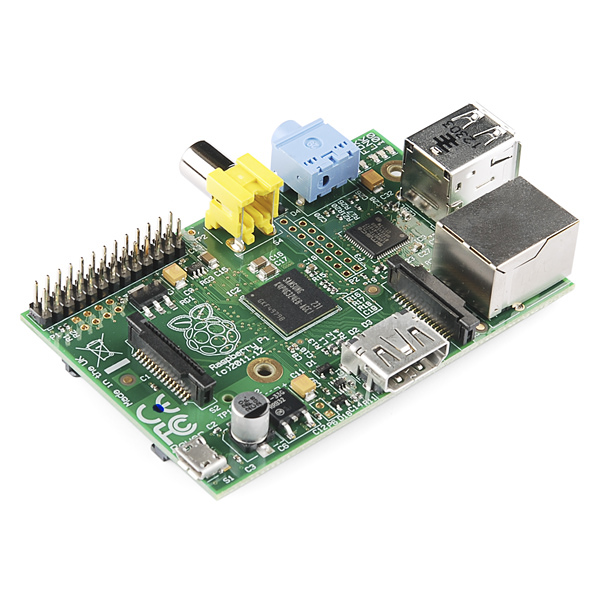
    I decided to upgrade my oldest Raspberry Pi to the latest Raspbian. Since I was two releases behind, I decided to do it step-by-step. Today I updated from 8 – 9. I plan. to perform similar steps to upgrade 9 – 10.

    Following are the quick sequence of steps I followed to perform the upgrade. This is a Model B Rev 2 Pi, so was considerably slow to update and took me more than 4 hours to complete.

    Step 1 – Prepare The System For Upgrade

    Apply the latest updates to the system.

    $ sudo apt update && sudo apt upgrade -y && sudo apt-get dist-upgrade -y

    Next step is to search for packages which have been only partially installed on the system using dpkg -C command.

    $ sudo dpkg -C

    The dpkg may indicate what needs to be done with these. I did not find anything under this category, which was good. In last, I ran apt-mark showhold command to get a list of all packages which have been marked as hold.

    $ sudo apt-mark showhold

    While I did not get any packages in this list, but if there are any, we are expected to resolve this before proceedig to step 2.

    Stpe 2 – Prepare the APT System for Upgrade

    $ sudo sed -i 's/jessie/stretch/g' /etc/apt/sources.list
    $ sudo sed -i 's/jessie/stretch/g' /etc/apt/sources.list.d/raspi.list
    $ echo 'deb http://archive.raspberrypi.org/debian/ stretch main' >> /etc/apt/sources.list

    I am updating only the two files but if your system has any other source files, then you need to update them appropriately as well. A list of such files can be found using – grep -lnr jessie /etc/apt

    In addition to this I also removed the package apt-listchange which displays what changed in the new version of the Debian package as compared to the version currently installed on the system. This is expected to speed-up the entire process. This is not mandatory, so you can skip it.

    # optional step
    $ sudo apt-get remove apt-listchange 

    Step 3 – Perform The Upgrade and Cleanup

    As a last step initiate the upgrade process. This is the time where you can just leave the system for few hours.

    $ sudo apt update && sudo apt upgrade -y && sudo apt-get dist-upgrade -y

    I faced issues with chromium-browser and at the last command (dist-upgrade), the dpkg bailed out with a message indicating archive corruption of chromium-browser package. Since I am at Run Level 3, and do not need chromium on the headless pi, I decided to remove the following three packages. In any case in the absence of chromium, the debian system will automatically use update-alternatives and choose epiphany-browser to satisfy gnome-www-browser requirement.

    $ sudo apt-get remove chromium-browser chromium-browser-l10n rpi-chromium-mods

    After removing the chromium browser, I did another round of update, upgrade and dist-upgrade, just to make sure before initiating the cleanup as below –

    $ sudo apt-get autoremove -y && sudo apt-get autoclean

    The new OS version can be verified by

    $ cat /etc/debian_version;cat /etc/os-release

    I also took this opportunity to update the firmware of the raspberry pi by running the following command. Please note this step is absolutely optional and it is recomended also that do not perform this unless you know what you are doing or you are being asked by a support person.

    $ sudo rpi-update
  • Raspberry Pi – rsyslog fixes on Raspbian 8 (Jessie)

    Raspberry Pi – rsyslog fixes on Raspbian 8 (Jessie)

    One of my Raspberry Pi (Raspberry Pi Model B Rev 2) is running quite old versio of Rasbian – although fully updated and patched. Today while checking the syslog on my raspberry pi, I noticed the following error which was very frequently – almost every minute and thus was filling up the syslog.

    Dec 24 20:59:35 rads rsyslogd-2007: action 'action 17' suspended, next retry is Thu Dec 24 21:01:05 2020 [try http://www.rsyslog.com/e/2007 ]

    Thanks to logrotate I was not in an immediate need for action, but still I thought it will be better to fix this – atleast that will reduce the write and increase life of my SD Card.

    The URL at the end of the message was very helpful. According to the specified URL this message simply means that rsyslog.conf contains the instruction to write to the xconsole pipe, but this pipe is never read. on editing the /etc/rsyslog file, the following section can be commented out or removed completely.

    daemon.*;mail.*;\        news.err;\        *.=debug;*.=info;\        *.=notice;*.=warn       |/dev/xconsole

    A simple systemctl restart rsyslog after that will fix the issue.

    I did not see this issue on my other Raspberry Pi which runs Raspbian based on Debian Buster (Debian 10). I checked the /etc/rsyslog.conf on that and could not find the offending lines there. So my understanding is that this issue is with Raspbian based on Jessie.

  • Apt Pinning in Raspbian

    Quite sometime back I wrote a blog entry on apt-pinning to mix multiple repositories in debian and prioritize them. Recently, I felt the need to do the same on my raspberry pi.

    I use rsnapshot to backup remote systems. Rsnapshot has an associated perl script which is meant to send beautiful reports via email at the end of the backup. The script in the version which came with raspbian was broken (1.3.1-4+deb8u1) and I needed 1.4.2-1, which is available in Debian Stretch.

    Following my earlier post, I performed the following steps to perform the installation of the required version without impacting the rest of the system. As you can see that the priority of Jessie is higher than that of Stretch, which will ensure that the system does not get messed up when you do an upgrade.

    # Create the preferences file for jessie and stretch as shown below
    $ sudo vi /etc/apt/preferences.d/jessie.pref
    Package: *
    Pin: release n=jessie
    Pin-Priority: 900
    
    $ sudo vi /etc/apt/preferences.d/stretch.pref
    Package: *
    Pin: release a=stretch
    Pin-Priority: 750
    
    # Define the package sources for both jessie and stretch
    $ sudo vi /etc/apt/sources.list.d/jessie.list
    deb http://mirrordirector.raspbian.org/raspbian/ jessie main contrib non-free rpi
    
    $ sudo vi /etc/apt/sources.list.d/stretch.list
    deb http://mirrordirector.raspbian.org/raspbian/ stretch main contrib non-free rpi
    
    # Refresh the cache and sources list
    $ sudo apt-get update
    
    # Install the desired package by specifying the repository from which 
    # it has to be installed
    $ sudo apt-get install rsnapshot -t stretch

    Please be careful before performing these steps in a production system.

  • Ansible Quirks – 3

    I was running some playbook today and realise that the command line arguments of ansible-playbook do not behaves expected.

    My playbook has the following defined –

    remote_user: root

    When I issued the following command, my expectation was that the remote user name would be considered as specified by the “-u” option

    $ ansible-playbook -u centos -i '192.168.1.192,' play.yml

    However, this does not happen and the playbook still tries to connect as the user defined in the yml file.

    So, how do we override what is in the yml file through command line. The only way seems to be possible is using the -e or --extra-vars option as follows –

    $ ansible-playbook -e "ansible_ssh_user=centos ansible_ssh_private_key_file=~/.ssh/db_hosts_id_rsa " -i '192.168.1.192,' play.yml

  • Ansible Quirks – 2

    Today I tried to upgrade my ansible to 2.2 as I wanted to use the remote_src=yes feature from the unarchive module. My operating system on this machine is Linux Mint 17.3.

    I did –

    $ pip install --upgrade --user ansible

    and lo… I got the following error –

    ImportError: No module named packaging.version

    I next tried upgrading the pip itself and that also resulted in the same error. A bit of search on the internet did not help much as different ways worked for different people. So I decided to remove python-pip package and all that was installed along with it, reinstall pip and then try upgrading ansible. In short, following sequence of commands worked for me –

    
    $ rm -rf ~/.cache/pip/*
    $ python -m pip install -U --user pip
    $ sudo apt-get purge -y python-pip
    $ sudo apt-get autoremove
    $ sudo apt-get install python-dev
    $ python -m pip install --upgrade --user packaging
    $ python -m pip install --upgrade --user appdirs
    $ python -m pip install --upgrade --user ansible