


Ajitabh Pandey's Soul & Syntax

Exploring systems, souls, and stories – one post at a time

Tag: systemd

  • From /etc/hosts to 127.0.0.53: A Sysadmin’s View on DNS Resolution

    If you’ve been managing systems since the days of AT&T Unix System V Release 3 (SVR3), you remember when networking was a manual affair. Name resolution often meant a massive, hand-curated /etc/hosts file and a prayer.

    As the Domain Name System (DNS) matured, the standard consolidated around a single, universally understood text file: /etc/resolv.conf. For decades, that file served us well. But the requirements of modern, dynamic networking, involving laptops hopping Wi-Fi SSIDs, complex VPN split-tunnels, and DNSSEC validation, forced a massive architectural shift in the Linux world, most notably in the form of systemd-resolved.

    Let’s walk through history, with hands-on examples, to see how we got here.

    AT&T SVR3: The Pre-DNS Era

    Released around 1987-88, SVR3 was still rooted in the hosts file model. The networking stacks were primitive, and TCP/IP was available but not always bundled. I still remember that around 1996-97, I used to install AT&T SVR3 version 4.2 using multiple 5.25-inch DSDD floppy disks, then, after installation, use another set of disks to install the TCP/IP stack. DNS support was not native, and we relied on /etc/hosts for hostname resolution. By SVR3.2, AT&T started shipping optional resolver libraries, but these were not standardized.

    # Example /etc/hosts file on SVR3
    127.0.0.1 localhost
    192.168.1.10 svr3box svr3box.local

    If DNS libraries were installed, /etc/resolv.conf could be used:

    # /etc/resolv.conf available when DNS libraries were installed
    nameserver 192.168.1.1
    domain corp.example.com

    dig did not exists then, and we used to use nslookup.

    nslookup svr3box
    Server: 192.168.1.1
    Address: 192.168.1.1#53

    Name: svr3box.corp.example.com
    Address: 192.168.1.10

    Solaris Bridging Classical and Modern

    When I was introduced to Sun Solaris around 2003-2005, I realized that DNS resolution was very well structured (at least compared to the SVR3 systems I had worked on earlier). Mostly, I remember working on Solaris 8 (with a few older SunOS 5.x systems). These systems required both /etc/resolv.conf and /etc/nsswitch.conf

    # /etc/nsswitch.conf
    hosts: files dns nis

    This /etc/nsswitch.conf had only the job of instructing the libc C library to look in /etc/hosts, then DNS, and then NIS. Of course, you can change the sequence.

    The /etc/resolv.conf defined the nameservers –

    nameserver 8.8.8.8
    nameserver 1.1.1.1
    search corp.example.com

    Solaris 11 introduced SMF (Service Management Facility), and this allowed the /etc/resolv.conf to auto-generate based on the SMF profile. Manual edits were discouraged, and we were learning to use:

    svccfg -s dns/client setprop config/nameserver=8.8.8.8
    svcadm refresh dns/client

    For me, this marked the shift from text files to managed services, although I did not work much on these systems.

    BSD Unix: Conservatism and Security

    The BSD philosophy is simplicity, transparency and security-first.

    FreeBSD and NetBSD still rely on /etc/resolv.conf file and the dhclient update the file automatically. This helps in very straightforward debugging.

    cat /etc/resolv.conf
    nameserver 192.168.1.2

    nslookup freebsd.org
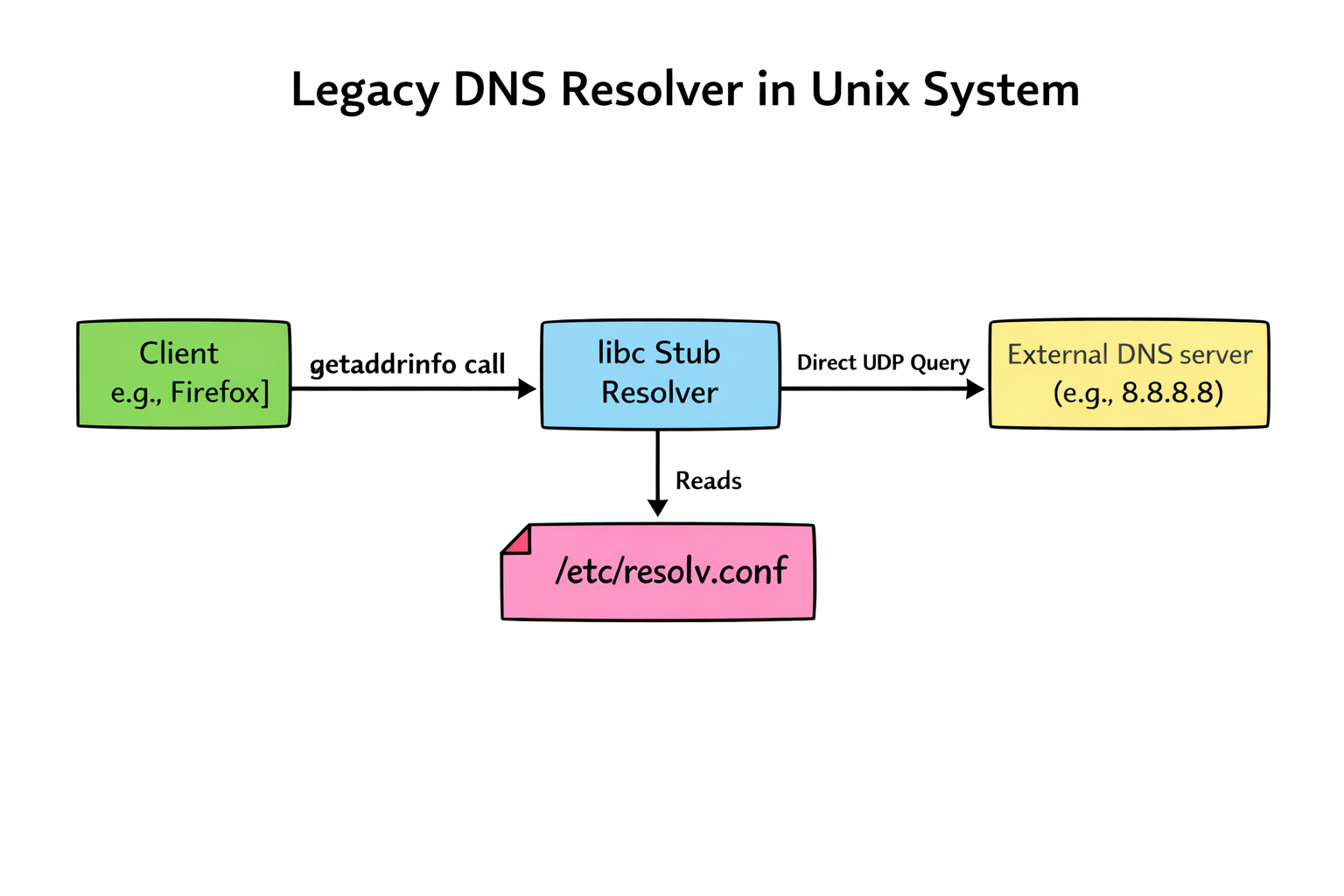
    OpenBSD, famous for its “secure by default” stance, includes modern, secure DNS software like unbound in its base installation; its default system resolution behavior remains classical. Unless the OS is explicitly configured to use a local caching daemon, applications on a fresh OpenBSD install still read /etc/resolv.conf and talk directly to external servers. They prioritize a simple, auditable baseline over complex automated magic.

    The Modern Linux Shift

    On modern Linux distributions (Ubuntu 18.04+, Fedora, RHEL 8+, etc.), the old way of simply “echoing” a nameserver into a static /etc/resolv.conf file is effectively dead. The reason for this is that the old model couldn’t handle race conditions. If NetworkManager, a VPN client, and a DHCP client all tried to write to that single file at the same time, the last one to write won.

    In modern linux systems, systemd-resolved acts as a local middleman, a DNS broker that manages configurations from different sources dynamically. The /etc/resolv.conf file is no longer a real file; it’s usually a symbolic link pointing to a file managed by systemd that directs local traffic to a local listener on 127.0.0.53.
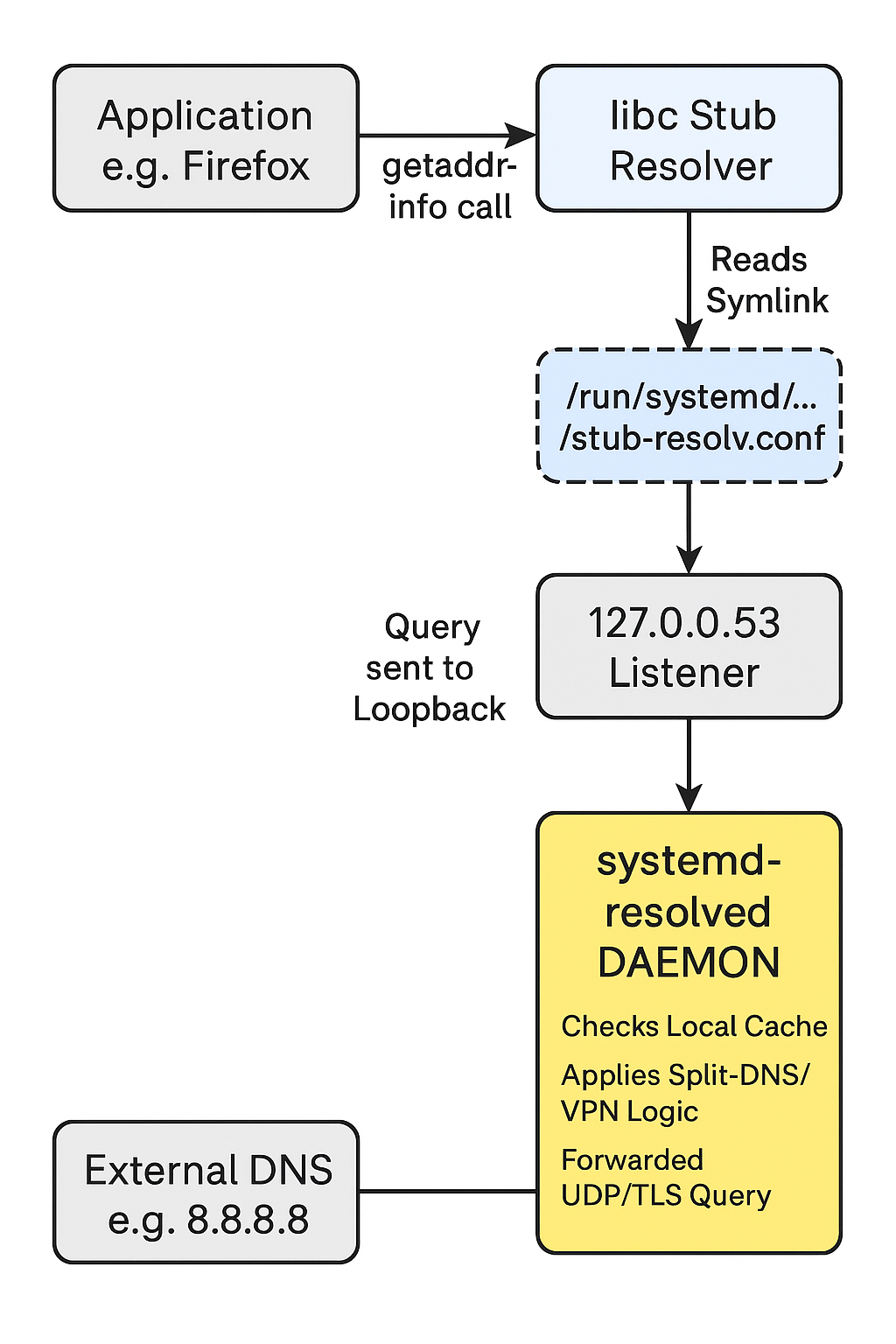
    systemd-resolved adds features like –

    • Split-DNS to help route VPN domains seperately.
    • Local-Caching for faster repeated lookups.
    • DNS-over-TLS for encrypted queries.
    ls -l /etc/resolv.conf
    lrwxrwxrwx 1 root root 39 Dec 24 11:00 /etc/resolv.conf -> ../run/systemd/resolve/stub-resolv.conf

    This complexity buys us features needed for modern mobile computing: per-interface DNS settings, local caching to speed up browsing, and seamless VPN integration.

    The modern linux systems uses dig and resolvectl for diagnostics:

    $ dig @127.0.0.53 example.com

    ; <<>> DiG 9.16.50-Raspbian <<>> @127.0.0.53 example.com
    ; (1 server found)
    ;; global options: +cmd
    ;; Got answer:
    ;; ->>HEADER<<- opcode: QUERY, status: NOERROR, id: 17367
    ;; flags: qr rd ra; QUERY: 1, ANSWER: 2, AUTHORITY: 0, ADDITIONAL: 1

    ;; OPT PSEUDOSECTION:
    ; EDNS: version: 0, flags:; udp: 1232
    ;; QUESTION SECTION:
    ;example.com. IN A

    ;; ANSWER SECTION:
    example.com. 268 IN A 104.18.27.120
    example.com. 268 IN A 104.18.26.120

    ;; Query time: 9 msec
    ;; SERVER: 127.0.0.53#53(127.0.0.53)
    ;; WHEN: Wed Dec 24 12:49:43 IST 2025
    ;; MSG SIZE rcvd: 72

    $ resolvectl query example.com
    example.com: 2606:4700::6812:1b78
    2606:4700::6812:1a78
    104.18.27.120
    104.18.26.120

    -- Information acquired via protocol DNS in 88.0ms.
    -- Data is authenticated: no; Data was acquired via local or encrypted transport: no
    -- Data from: network

    Because editing the file directly no longer works reliably, we must use tools that communicate with the systemd-resolved daemon.

    Suppose you want to force your primary ethernet interface (eth0) to bypass DHCP DNS and use Google’s servers temporarily:

    sudo systemd-resolve --set-dns=8.8.8.8 --set-dns=8.8.4.4 --interface=eth0

    To check what is actually happening—seeing which DNS servers are bound to which interface scopes—run:

    systemd-resolve --status

    and to clear the manual overrides and go back to whatever setting DHCP provided:

    sudo systemd-resolve --revert --interface=eth0

    We’ve come a long way from System V R3. While the simplicity of the classical text-file approach is nostalgic for those of us who grew up on it, the dynamic nature of today’s networking requires a smarter local resolver daemon. It adds complexity, but it’s the price we pay for seamless connectivity in a mobile world.

  • Why Systemd Timers Outshine Cron Jobs

    For decades, cron has been the trusty workhorse for scheduling tasks on Linux systems. Need to run a backup script daily? cron was your go-to. But as modern systems evolve and demand more robust, flexible, and integrated solutions, systemd timers have emerged as a superior alternative. Let’s roll up our sleeves and dive into the strategic advantages of systemd timers, then walk through their design and implementation..

    Why Ditch Cron? The Strategic Imperative

    While cron is simple and widely understood, it comes with several inherent limitations that can become problematic in complex or production environments:

    • Limited Visibility and Logging: cron offers basic logging (often just mail notifications) and lacks a centralized way to check job status or output. Debugging failures can be a nightmare.
    • No Dependency Management: cron jobs are isolated. There’s no built-in way to ensure one task runs only after another has successfully completed, leading to potential race conditions or incomplete operations.
    • Missed Executions on Downtime: If a system is off during a scheduled cron run, that execution is simply missed. This is critical for tasks like backups or data synchronization.
    • Environment Inconsistencies: cron jobs run in a minimal environment, often leading to issues with PATH variables or other environmental dependencies that work fine when run manually.
    • No Event-Based Triggering: cron is purely time-based. It cannot react to system events like network availability, disk mounts, or the completion of other services.
    • Concurrency Issues: cron doesn’t inherently prevent multiple instances of the same job from running concurrently, which can lead to resource contention or data corruption.

    systemd timers, on the other hand, address these limitations by leveraging the full power of the systemd init system. (We’ll dive deeper into the intricacies of the systemd init system itself in a future post!)

    • Integrated Logging with Journalctl: All output and status information from systemd timer-triggered services are meticulously logged in the systemd journal, making debugging and monitoring significantly easier (journalctl -u your-service.service).
    • Robust Dependency Management: systemd allows you to define intricate dependencies between services. A timer can trigger a service that requires another service to be active, ensuring proper execution order.
    • Persistent Timers (Missed Job Handling): With the Persistent=true option, systemd timers will execute a missed job immediately upon system boot, ensuring critical tasks are never truly skipped.
    • Consistent Execution Environment: systemd services run in a well-defined environment, reducing surprises due to differing PATH or other variables. You can explicitly set environment variables within the service unit.
    • Flexible Triggering Mechanisms: Beyond simple calendar-based schedules (like cron), systemd timers support monotonic timers (e.g., “5 minutes after boot”) and can be combined with other systemd unit types for event-driven automation.
    • Concurrency Control: systemd inherently manages service states, preventing multiple instances of the same service from running simultaneously unless explicitly configured to do so.
    • Granular Control: Timers offer second-resolution scheduling (with AccuracySec=1us), allowing for much more precise control than cron‘s minute-level resolution.
    • Randomized Delays: RandomizedDelaySec can be used to prevent “thundering herd” issues where many timers configured for the same time might all fire simultaneously, potentially overwhelming the system.

    Designing Your Systemd Timers: A Two-Part Harmony

    systemd timers operate in a symbiotic relationship with systemd service units. You typically create two files for each scheduled task:

    1. A Service Unit (.service file): This defines what you want to run (e.g., a script, a command).
    2. A Timer Unit (.timer file): This defines when you want the service to run.

    Both files are usually placed in /etc/systemd/system/ for system-wide timers or ~/.config/systemd/user/ for user-specific timers.

    The Service Unit (your-task.service)

    This file is a standard systemd service unit. A basic example:

    [Unit]
    Description=My Daily Backup Service
    Wants=network-online.target # Optional: Ensure network is up before running
    
    [Service]
    Type=oneshot # For scripts that run and exit
    ExecStart=/usr/local/bin/backup-script.sh # The script to execute
    User=youruser # Run as a specific user (optional, but good practice)
    Group=yourgroup # Run as a specific group (optional)
    # Environment="PATH=/usr/local/bin:/usr/bin:/bin" # Example: set a custom PATH
    
    [Install]
    WantedBy=multi-user.target # Not strictly necessary for timers, but good for direct invocation
    

    Strategic Design Considerations for Service Units:

    • Type=oneshot: Ideal for scripts that perform a task and then exit.
    • ExecStart: Always use absolute paths for your scripts and commands to avoid environment-related issues.
    • User and Group: Run services with the least necessary privileges. This enhances security.
    • Dependencies (Wants, Requires, After, Before): Leverage systemd‘s powerful dependency management. For example, Wants=network-online.target ensures the network is active before the service starts.
    • Error Handling within Script: While systemd provides good logging, your scripts should still include robust error handling and exit with non-zero status codes on failure.
    • Output: Direct script output to stdout or stderr. journald will capture it automatically. Avoid sending emails directly from the script unless absolutely necessary; systemd‘s logging is usually sufficient.

    The Timer Unit (your-task.timer)

    This file defines the schedule for your service.

    [Unit]
    Description=Timer for My Daily Backup Service
    Requires=your-task.service # Ensure the service unit is loaded
    After=your-task.service # Start the timer after the service is defined
    
    [Timer]
    OnCalendar=daily # Run every day at midnight (default for 'daily')
    # OnCalendar=*-*-* 03:00:00 # Run every day at 3 AM
    # OnCalendar=Mon..Fri 18:00:00 # Run weekdays at 6 PM
    # OnBootSec=5min # Run 5 minutes after boot
    Persistent=true # If the system is off, run immediately on next boot
    RandomizedDelaySec=300 # Add up to 5 minutes of random delay to prevent stampedes
    
    [Install]
    WantedBy=timers.target # Essential for the timer to be enabled at boot
    

    Strategic Design Considerations for Timer Units:

    • OnCalendar: This is your primary scheduling mechanism. systemd offers a highly flexible calendar syntax (refer to man systemd.time for full details). Use systemd-analyze calendar "your-schedule" to test your expressions.
    • OnBootSec: Useful for tasks that need to run a certain duration after the system starts, regardless of the calendar date.
    • Persistent=true: Crucial for reliability! This ensures your task runs even if the system was powered off during its scheduled execution time. The task will execute once systemd comes back online.
    • RandomizedDelaySec: A best practice for production systems, especially if you have many timers. This spreads out the execution of jobs that might otherwise all start at the exact same moment.
    • AccuracySec: Defaults to 1 minute. Set to 1us for second-level precision if needed (though 1s is usually sufficient).
    • Unit: This explicitly links the timer to its corresponding service unit.
    • WantedBy=timers.target: This ensures your timer is enabled and started automatically when the system boots.

    Implementation and Management

    1. Create the files: Place your .service and .timer files in /etc/systemd/system/.
    2. Reload systemd daemon: After creating or modifying unit files: sudo systemctl daemon-reload
    3. Enable the timer: This creates a symlink so the timer starts at boot: sudo systemctl enable your-task.timer
    4. Start the timer: This activates the timer for the current session: sudo systemctl start your-task.timer
    5. Check status: sudo systemctl status your-task.timer; sudo systemctl status your-task.service
    6. View logs: journalctl -u your-task.service
    7. Manually trigger the service (for testing): sudo systemctl start your-task.service

    Conclusion

    While cron served its purpose admirably for many years, systemd timers offer a modern, robust, and integrated solution for scheduling tasks on Linux systems. By embracing systemd timers, you gain superior logging, dependency management, missed-job handling, and greater flexibility, leading to more reliable and maintainable automation. It’s a strategic upgrade that pays dividends in system stability and ease of troubleshooting. Make the switch and experience the power of a truly systemd-native approach to scheduled tasks.